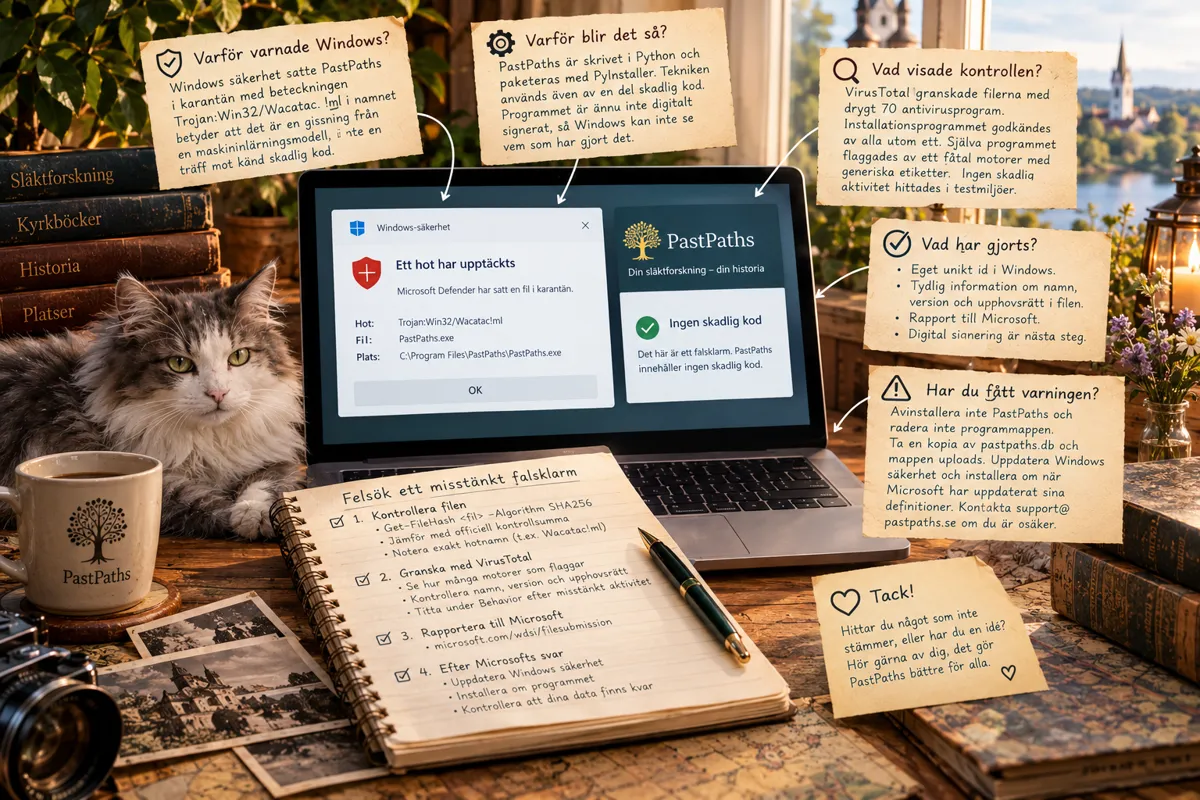
Svenska: Varför varnade Windows för PastPaths?
En användare fick nyligen en varning från Windows säkerhet om att PastPaths skulle vara en trojan. Varningen var ett falsklarm och PastPaths innehåller ingen skadlig kod.
Vad hände?
Windows säkerhet (Microsoft Defender) satte PastPaths i karantän med beteckningen Trojan:Win32/Wacatac. Tillägget !ml i namnet betyder att det är en gissning från en maskininlärningsmodell, inte en träff mot känd skadlig kod.
Varför blir det så?
PastPaths är skrivet i Python och paketeras till ett Windows-program med verktyget PyInstaller. Programmet packar upp och startar sin egen kod när det körs. Det är helt normalt, men samma teknik används även av en del skadlig kod. Dessutom är PastPaths ännu inte digitalt signerat, vilket gör att Windows inte kan se vem som har gjort programmet.
Vad visade kontrollen?
Jag lät tjänsten VirusTotal granska filerna med drygt 70 olika antivirusprogram. Installationsprogrammet godkändes av alla utom ett. Själva programmet flaggades av ett fåtal motorer med generiska etiketter. När programmet kördes i säkra testmiljöer hittades inga skadliga beteenden, ingen misstänkt nätverkstrafik och inga dolda filer.
Vad har gjorts?
- Installationsprogrammet har fått ett eget unikt id i Windows, i stället för ett exempelvärde som kan delas med andra program.
- Programfilen har fått tydlig information om namn, version och upphovsrätt.
- Falsklarmet rapporteras till Microsoft för granskning.
- Digital signering av programmet är nästa steg och den mest varaktiga lösningen.
Har du fått varningen?
Avinstallera inte PastPaths och radera inte programmappen, eftersom din databas ligger där. Ta gärna en kopia av filen pastpaths.db och mappen uploads i %LOCALAPPDATA%\PastPaths. När Microsoft har uppdaterat sina definitioner kan du uppdatera Windows säkerhet och installera om PastPaths. Kontakta gärna support@pastpaths.se om du är osäker.
Checklista: felsök ett misstänkt falsklarm
Kontrollera filen
- Räkna fram filens kontrollsumma med
Get-FileHash <fil> -Algorithm SHA256i PowerShell. - Jämför den med kontrollsumman för den officiella versionen, så att du vet att filen inte är ändrad.
- Notera exakt vilket hot Windows säkerhet anger, till exempel
Trojan:Win32/Wacatac.B!ml.
Granska med VirusTotal
- Ladda upp filen på virustotal.com.
- Se hur många av motorerna som flaggar filen. Ett fåtal träffar med generiska namn tyder på falsklarm.
- Öppna fliken Details och kontrollera att namn, version och upphovsrätt stämmer.
- Öppna fliken Behavior och se om sandlådorna hittat skadliga beteenden, nätverkstrafik eller droppade filer.
Rapportera till Microsoft
- Gå till microsoft.com/wdsi/filesubmission.
- Välj "Software developer" om du har gjort programmet, annars "Home customer".
- Ladda upp filen och välj att den är felaktigt identifierad som skadlig.
- Ange hotets namn och en kort beskrivning av vad programmet gör.
- Vänta på svar via e-post, det tar ofta några dagar.
Efter Microsofts svar
- Uppdatera Windows säkerhet ("Sök efter uppdateringar").
- Installera om programmet och kontrollera att dina data finns kvar.
English: Why did Windows warn about PastPaths?
A user recently got a warning from Windows Security saying that PastPaths was a trojan. The warning was a false positive and PastPaths contains no malicious code. Here is what happened.
What happened?
Windows Security (Microsoft Defender) quarantined PastPaths and labelled it Trojan:Win32/Wacatac. The !ml suffix in the name means it is a guess by a machine learning model, not a match against known malware.
Why does this happen?
PastPaths is written in Python and packaged as a Windows program with a tool called PyInstaller. When it runs, the program unpacks and starts its own code. That is completely normal, but some malware uses the same technique. PastPaths is also not yet digitally signed, so Windows cannot tell who made the program.
What did the check show?
I had the VirusTotal service scan the files with over 70 different antivirus engines. All but one approved the installer. A handful of engines flagged the program itself with generic labels. When the program was run in secure test environments, no malicious behaviour, suspicious network traffic or hidden files were found.
What has been done?
- The installer now has its own unique ID in Windows, instead of an example value that other programs may share.
- The program file now carries clear information about its name, version and copyright.
- The false positive is being reported to Microsoft for review.
- Digitally signing the program is the next step and the most lasting fix.
Did you get the warning?
Do not uninstall PastPaths or delete the program folder, because your database is stored there. Consider making a copy of the pastpaths.db file and the uploads folder in %LOCALAPPDATA%\PastPaths. Once Microsoft has updated its definitions, update Windows Security and reinstall PastPaths. Contact support@pastpaths.se if you are unsure.
Checklist: troubleshooting a suspected false positive
Check the file
- Calculate the file's checksum with
Get-FileHash <file> -Algorithm SHA256in PowerShell. - Compare it with the checksum of the official release, so you know the file has not been altered.
- Note exactly which threat Windows Security reports, for example
Trojan:Win32/Wacatac.B!ml.
Check with VirusTotal
- Upload the file at virustotal.com.
- See how many engines flag the file. A few hits with generic names suggest a false positive.
- Open the Details tab and check that the name, version and copyright are correct.
- Open the Behavior tab and see whether the sandboxes found malicious behaviour, network traffic or dropped files.
Report to Microsoft
- Go to microsoft.com/wdsi/filesubmission.
- Choose "Software developer" if you made the program, otherwise "Home customer".
- Upload the file and select that it was incorrectly detected as malicious.
- Enter the threat name and a short description of what the program does.
- Wait for an email reply, which often takes a few days.
After Microsoft replies
- Update Windows Security ("Check for updates").
- Reinstall the program and check that your data is still there.